

Both AutoCAD and Revit have very helpful tools for measuring the length of a line or the distance between two objects.
As a designer, I need this information constantly. Sometimes I’m trying to understand what’s happening in a drawing. Other times I’m simply double-checking dimensions before making a decision.
In AutoCAD, I use the Distance command. In Revit, I use the Measure Between Two References command.
I’ve assigned easy-to-reach hotkeys to both commands, and I use them all day long.
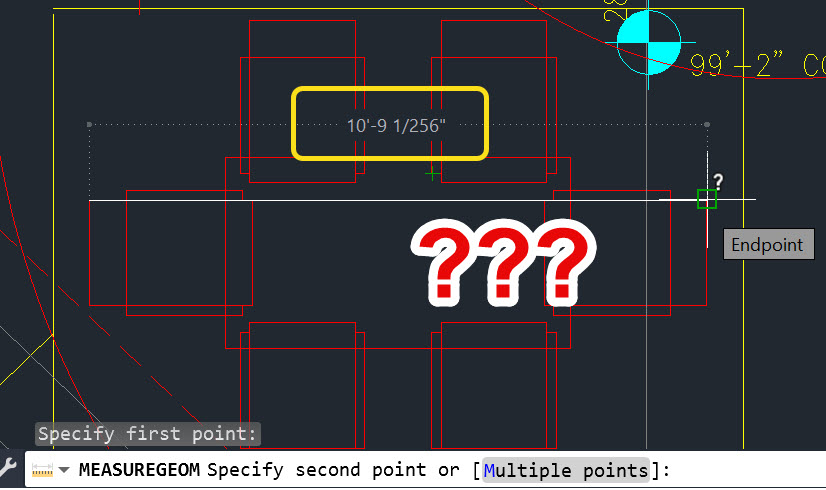
Years ago, I stopped creating temporary dimensions, reading them, and then deleting them. Using the Measure or Distance command is simply faster and more efficient.
The only downside is that the software often returns some pretty unwieldy fractions.
What do I mean by unwieldy? Fractions like 83/128″ and 117/256″. Sometimes you’ll even see mixed numbers such as 19′-213/256″.
Fractions can be challenging enough when they’re simple. My favorite fraction is 1/2. Technically, that’s the same as 128/256—but nobody wants to work with fractions that way!

There are ways to set the precision of the displayed units lower in both AutoCAD and Revit. However, there are many cases where I appreciate the highest precision. It helps me to detect little mistakes that can multiply if left uncorrected.
Over the years, I’ve developed a couple of quick methods for reducing those cumbersome 128th and 256th fractions into cleaner, more practical numbers such as 1/4, 3/8, 5/8, or whatever level of precision makes sense for the task at hand.
Click below to watch the video and see the process in action.
And if you enjoy practical AutoCAD and Revit tips like this, I’d appreciate it if you’d Like and Subscribe.
Thanks for reading and watching, and…
Keep on CADDing! 😊
Mark