
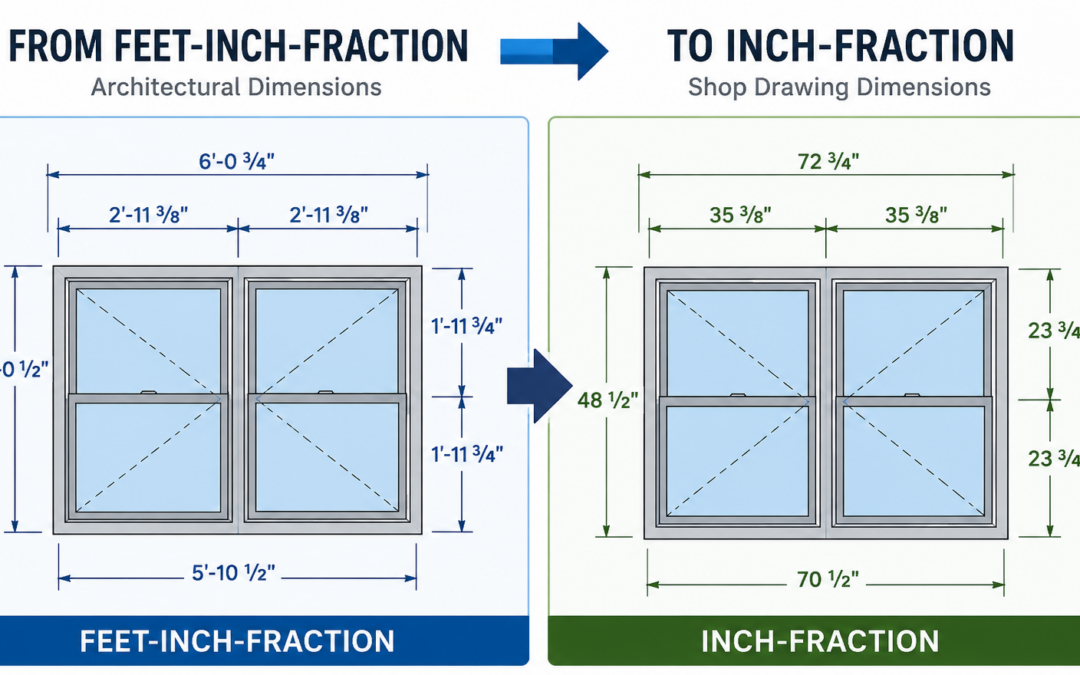
The careful review and marking-up of manufacturer’s shop drawings can be challenging. And very time-consuming. Yet it’s a crucial part of the long and winding road to a successful finished project.
Here’s the opportunity hiding in the difficulty: Accomplishing this task accurately and efficiently is a highly valued skill in the workplace.
One reason it’s challenging has to do with the units format preferred by manufacturers. Length dimensions in U.S. manufacturers’ shop drawings can appear mystifying.
It really is similar to describing the same physical thing in two different languages.
Architects in the U.S. typically dimension their drawings using feet, inches, and fractions.
5′-1 1/4″
Architectural drawing units
Unfortunately, when shop drawings come back from manufacturers for review, the dimensions are often shown in inches and fractions only, often with “unrequested” adjustments. Unit indicators (‘, “) are optional.
61 7/32
Shop drawing units (one typical example)
This can make comparisons between the architectural drawings and shop drawings more time-consuming than they need to be—especially on projects with numerous door and window types and heavily dimensioned details.
To help streamline the review process, I made a short video showing a unique process that I developed to streamline shop drawing review. It demonstrates:
• How to create an “Inch-Only” or “Inch-Fraction” dimension style in AutoCAD; and
• A simple process to quickly convert a large number of drawings from Architectural (feet-inch-fraction) format to Inch-Only or Inch-and-Fraction format in just a couple of clicks.
This procedure is designed to be non-destructive. Your original architectural dimensions are preserved. Very important for any discussions that may arise later.
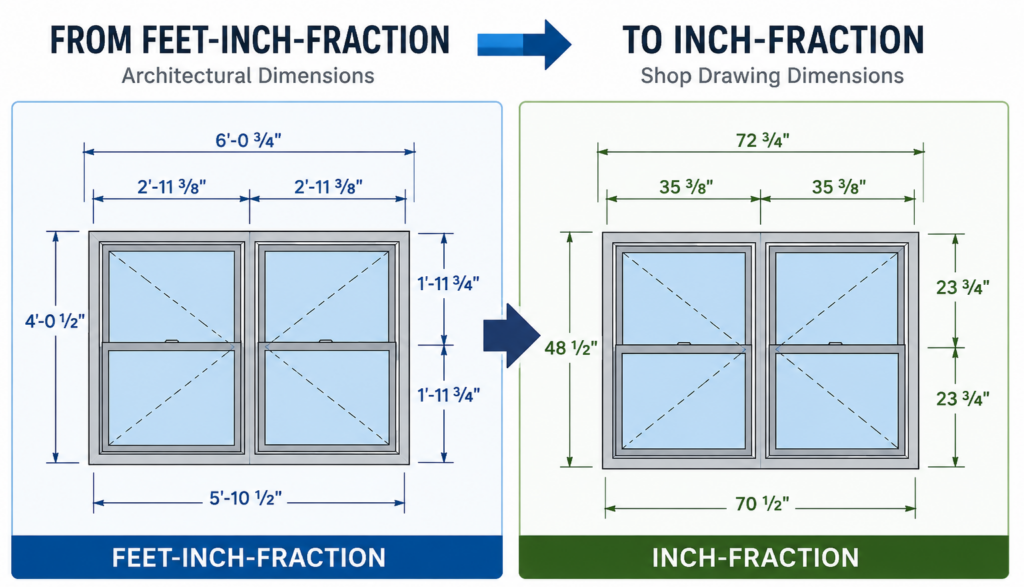
By matching the dimension format used in the shop drawings, it becomes much easier to compare Architectural vs. Factory dimensions and spot any discrepancies that require correction.
Although the example in the video below focuses on windows, the same technique can be usedd when reviewing shop drawings for doors, cabinetry, appliances, millwork, and many other construction-related items.
Here is the video on converting AutoCAD dimension styles to “Inch-Only” or “Inch-Fraction”:
Here’s the best part. This is a “Once and it’s done” procedure. Once you’ve created the “inches & fractions” dimension style, simply:
- Add the dimension style to your current DWT drawing template, and
- Save an sample of it to your main CAD library in the Annotations section.
Now it’s at your fingertips the next time you need it. No muss, no fuss.
Also, if you should ever encounter shop drawings (or any drawing) containing overly complex fractions such as 23/128″, you may also find my earlier post helpful:
Simplifying Overly-Complex Fractions in AutoCAD and Revit
I hope you find this tip useful. And as always . . .
Keep on CADDing! 😊
Mark